Using the Toosheh app: from raw file to library
The drive is recorded; now the app has to open it. A step-by-step guide to extraction and the five sections — with a real screenshot for each step.
The Toosheh app is installed and a recorded file sits on your drive. Now comes the real step: turning raw satellite data into news, films and books. This page walks you through the app itself, step by step — on Windows and on Android. If you haven't recorded a drive yet, start with Setup and satellite reception.
The interface: five sections
The slide-out menu (the ☰ button at the top) splits the app into five sections:
- Satellite: opens and extracts the recording — this is the heart of it.
- Files: shows the extracted content sorted — news, video, books.
- Backpack: offline copies of whole websites (BBC Persian, Radio Farda …), browsable with no internet.
- Local Network: shares files wirelessly between devices.
- Settings: paths and app behaviour.
Extraction on Windows, step by step
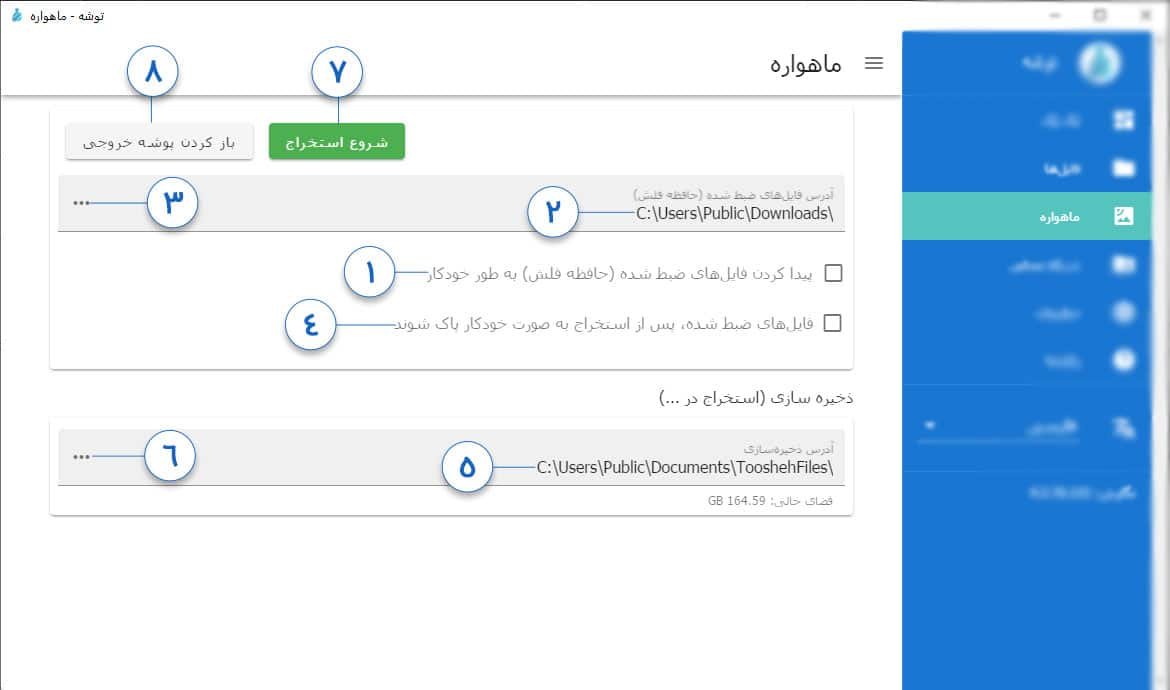
Open the Satellite section.
The numbers on the image above match these step numbers exactly — read the screenshot beside the text.
- 1Tick "find the recording automatically" so the app detects the drive itself.
- 2The address of the detected drive appears here.
- 3If auto-detection fails, click "…" and set the Toosheh file's path by hand.
- 4To delete the raw recording after extraction, tick "delete automatically".
- 5This is the default destination folder for the extracted files.
- 6Click the "…" beside it to change that destination.
- 7Now click the green "Start extraction" button and wait.
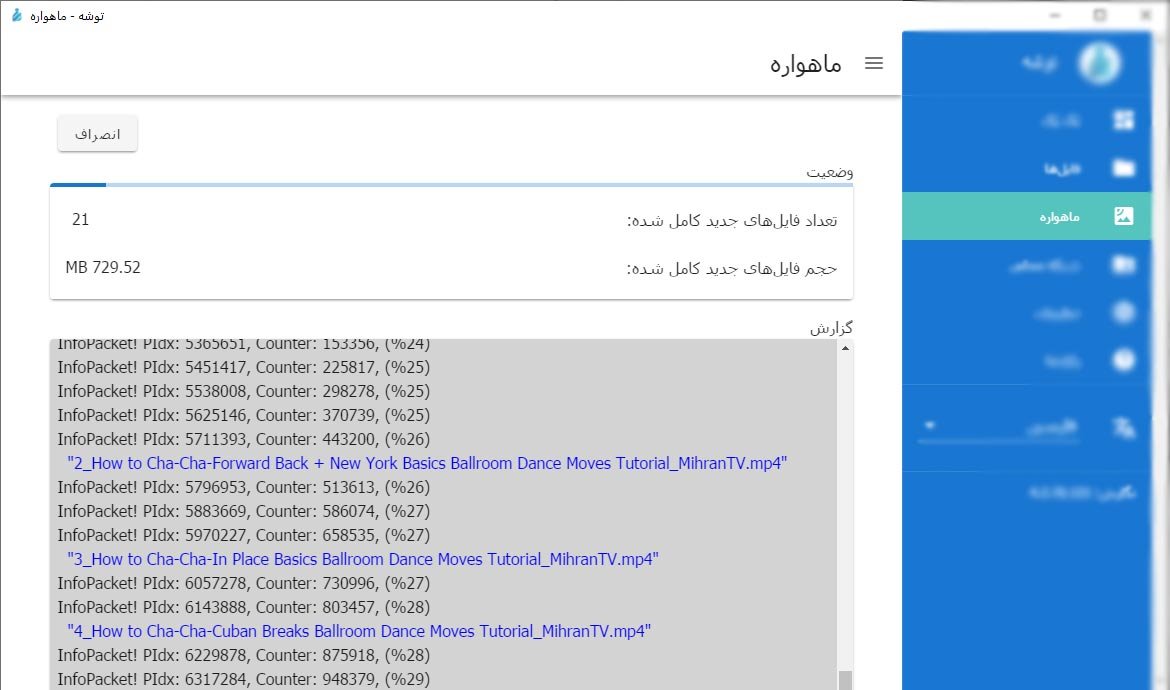
When it finishes, the results screen opens:
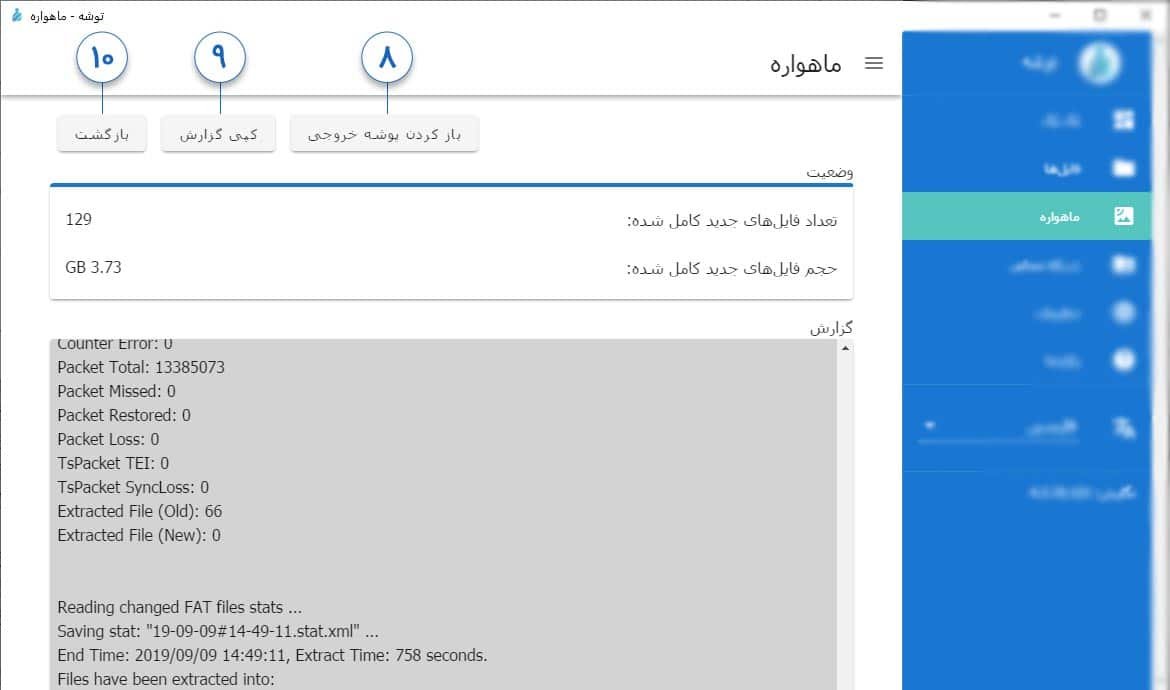
- 8"Open output folder" opens the folder in Windows.
- 9"Copy report" builds a technical report; send exactly this if you need support.
- 10"Back" returns you to the home screen.
Extraction on Android
On the phone, the app first asks you to set the destination; until you do, the extract button stays inactive (the orange warning, number 1).
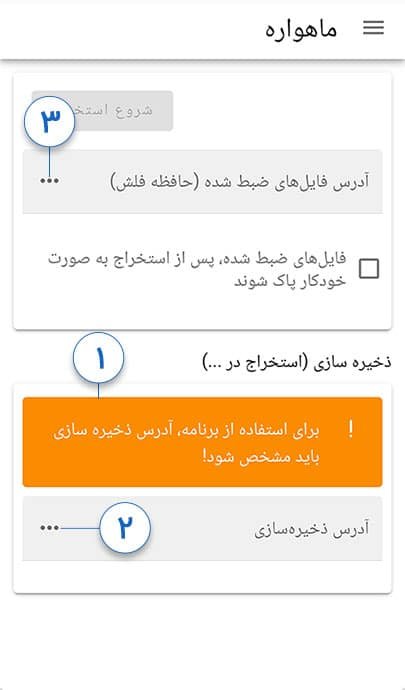
- 1Use "…" to choose the output destination (an SD card is best).
- 2Use "…" to set the Toosheh file's path on the drive (via an OTG cable).
- 3Optionally tick auto-delete of the raw file, then "Start extraction".
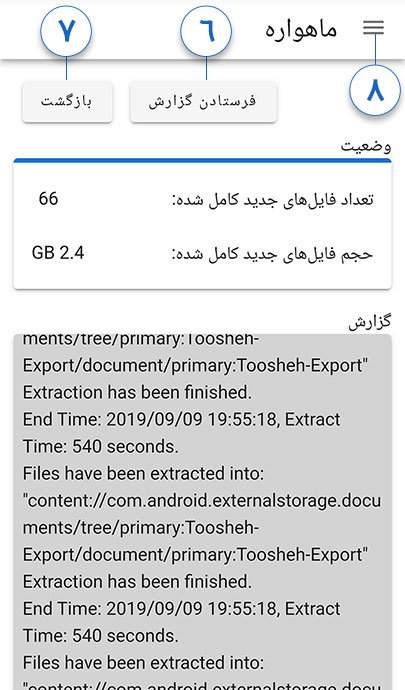
At the end, "Send report" (6) sends the log to support and "Back" (7) returns home. The slide-out menu (8) is reachable on every screen.
Files, Backpack and Local Network
After extraction, Files shows the content sorted. Backpack holds offline websites — the thing that replaces the browser when the internet is cut. Local Network hands that same content wirelessly to the phone next to you: received once, shared many times. It is exactly this pass-it-on chain that makes Toosheh resilient to a shutdown — unpacked in the Prisonbreak file.
When something jams
- "Extraction abandoned": the recording was incomplete; send the report to support@toosheh.org and record the drive again.
- File extension "li.!": part of the file is missing; put the drive back in the receiver and record the rest.
- The app won't read the file: the recording format must be TS, TSV, M2TS or TP0; if not, go back to Setup and reception.
If the app isn't installed yet, begin at Installing Toosheh. The full overview and official links live in the Toosheh main file. Learn it today; on shutdown day there is only time to use it, not to learn it.